A Mac Backup Strategy You'll Actually Keep Up With
A low-effort 3-2-1 Mac backup: Time Machine on a cheap external drive plus cloud sync for the files you can't replace, set up in about thirty minutes.

The backup that survives is the one that runs without you. For most people that means Time Machine on an inexpensive external drive for the full-system safety net, plus cloud sync for the smaller set of files you truly can’t replace. It’s about thirty minutes of setup, it covers the 3-2-1 rule, and after that it asks nothing of you, which is exactly why it keeps working.
What 3-2-1 actually means
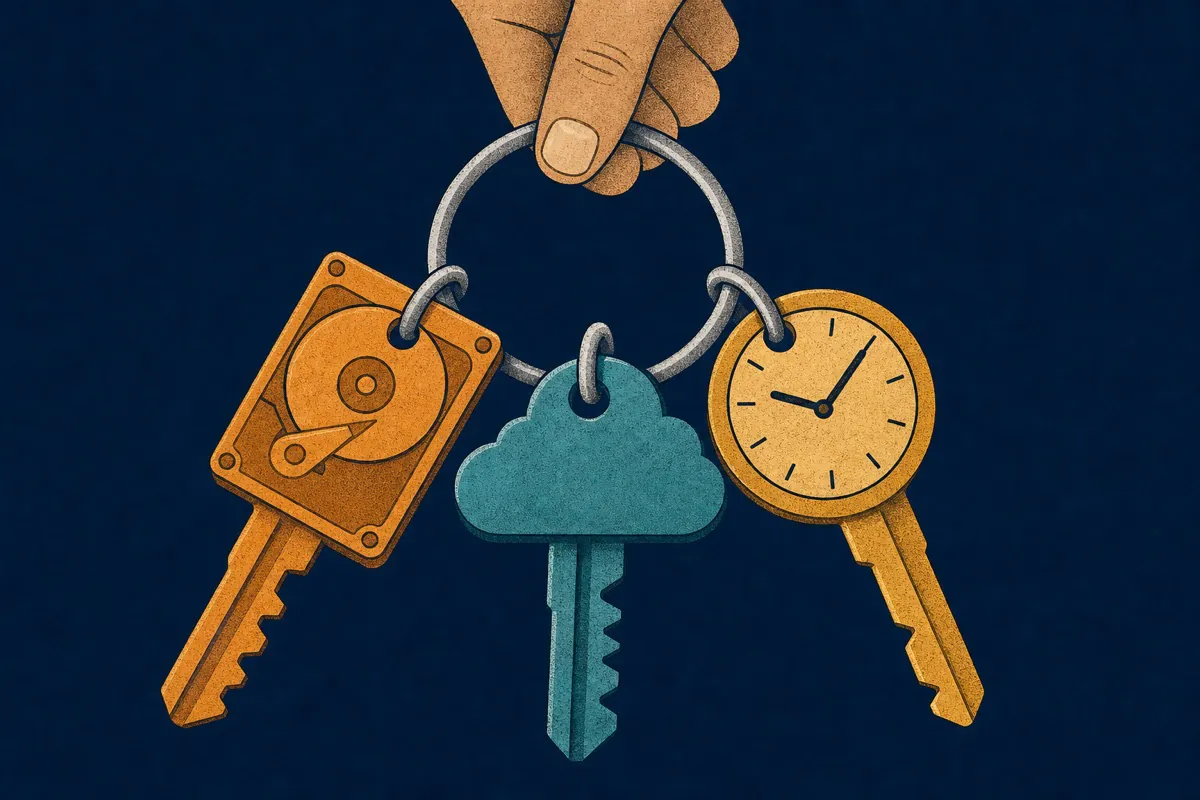
3-2-1 is three copies of your data, on two different kinds of storage, with one copy somewhere else. The three copies are your Mac, a local backup, and a remote one. The two kinds of storage guard against a single technology failing you at once. And the “somewhere else” is the part that actually saves you, because it’s the only copy that survives theft, a fire, or a coffee spill that takes out both the laptop and the drive sitting next to it.
That last copy is also the one most people skip. A local backup feels like enough right up until the moment the laptop and the drive are in the same bag that gets stolen. Offsite is what turns a bad day into an inconvenience.
Setting up Time Machine
Time Machine handles the local, whole-system copy with almost no effort. Plug in an external drive, open System Settings > General > Time Machine, choose Add Backup Disk, and pick it. From then on it backs up automatically, keeping roughly hourly snapshots for the past day, daily ones for the past month, and weekly ones further back, thinning older copies as the drive fills.
For the drive itself, aim for at least twice your Mac’s internal storage so there’s room for that history, and more if you deal in large media. An SSD is pleasant but not required here; a plain external drive left permanently attached does the job, and “permanently attached” matters more than speed, because a backup drive in a drawer never runs.
Two small things smooth the start. When macOS offers to encrypt the backup during setup, say yes; it means a lost or stolen drive is just a brick to whoever finds it, rather than a copy of everything you own. And expect the very first backup to take a while, sometimes a few hours for a full machine, since it’s copying everything at once. After that, each run only handles what changed and finishes in the background without you noticing.
What belongs in the cloud
The cloud copy doesn’t need to hold everything. It needs to hold the files you can’t re-download: your documents, tax records and contracts, and your photos. Apps, system files, and anything you could reinstall don’t need cloud backup, and leaving them out keeps the sync light and cheap.
This is where a simple folder system pays off. If your important files already live in a couple of clear folders, you can point a cloud tool like BlueHammer Drive at exactly those and leave the rest local. Setting this up on a fresh machine is easiest of all, which is why it’s worth folding into how you set up a new Mac in an organized way rather than retrofitting it later.
The two mistakes that sink backups
Two mistakes quietly undo most backup plans. The first is keeping the external drive in the same bag as the laptop. That’s two copies destroyed by one stolen bag, and it collapses your 3-2-1 down to zero. Keep the local drive at home or at the office, not travelling alongside the machine it’s protecting.
The second is believing that sync is backup. Sync faithfully copies everything, including your mistakes: delete a file and it vanishes from every device, and the same is true if ransomware or a bad save corrupts it. What makes sync behave like a backup is version history, the ability to roll a file back to how it looked last week. Check that whatever service you use keeps versions, and know how far back the window goes.
Test a restore twice a year
An untested backup is a hope, not a plan. Twice a year, actually restore something: open Time Machine and recover a single old file, or pull one document down from the cloud copy, and confirm it opens and looks right. The point isn’t the file. It’s proving the whole chain works before the day you need all of it.
This ten-minute check catches the failures that hide until it’s too late, like a drive that stopped backing up months ago or a cloud folder that was never syncing what you assumed. Pair it with a quick look at whether your important files are still landing in the right folders, and your backups keep matching reality instead of slowly drifting away from it.
Common questions
Is iCloud or cloud sync a backup?
Only partially. Plain sync mirrors your files across devices, which means it also mirrors your deletions and any damage, so a file you erase or a document ransomware scrambles gets propagated everywhere. Sync only counts as a backup if it keeps version history you can roll back to, which most services offer for a limited window.
How big should a Time Machine drive be?
A useful rule of thumb is at least twice your Mac's internal storage, so a 512GB MacBook pairs well with a 1TB or larger drive. Time Machine keeps multiple points in time, and more history needs more room, so size up further if you work with video or churn through large files.
How often should backups run?
Automatically and often. Time Machine backs up roughly hourly for the past day once it's set up, and that hands-off cadence is the whole point. Any backup that depends on you remembering to run it eventually becomes a backup you never run.
Recommended next step
Make everyday Mac care easier with BlueHammer
Clean up storage, organize files, browse privately, and keep everyday protection in one place.
Back up important files with Drive