A Simple Folder System for Keeping Work, Photos, and Downloads Organized
A simple five-folder Mac setup (Inbox, Active, Archive, Reference, Media) that stays maintainable, searches fast, and maps cleanly onto your backups.
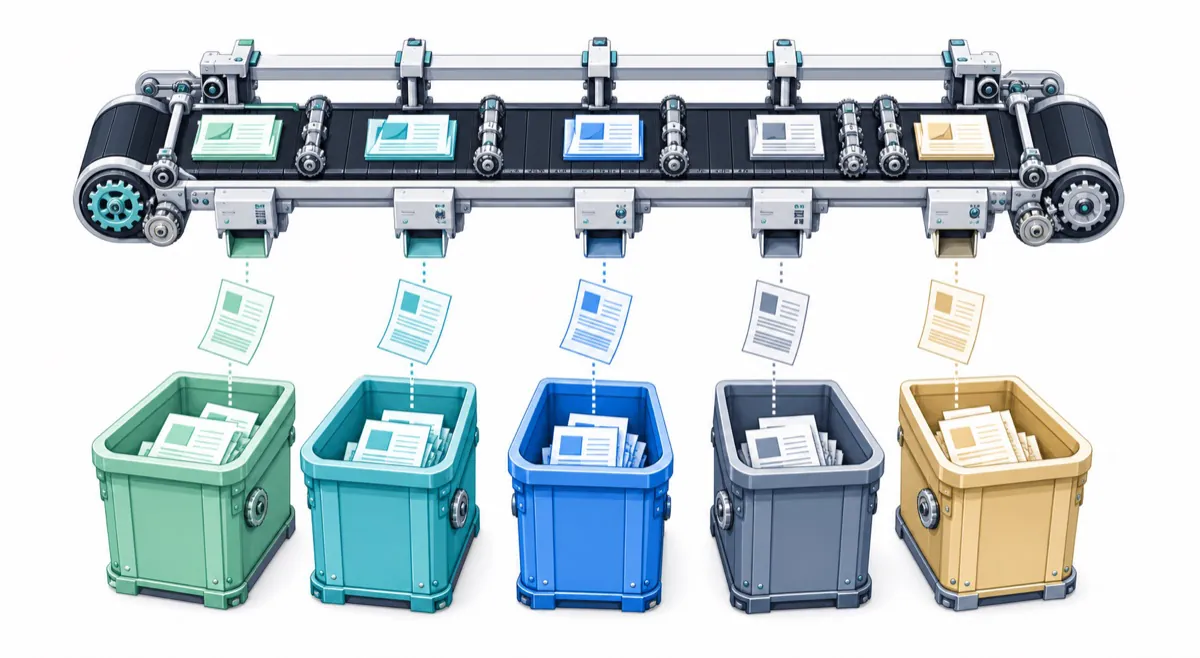
The most reliable folder system on a Mac has five top-level folders, not fifty nested ones: Inbox, Active, Archive, Reference, and Media. Deep folder trees feel tidy on the day you build them and fall apart a month later, because you file things by project but search for them by memory, and the two rarely match. Five broad folders plus good file names lets Spotlight do the remembering for you.
Why five folders beat a deep hierarchy
A deep hierarchy fails because it asks you to make the same decision twice: once when you save a file, and again, differently, when you go looking for it. You save an invoice under Clients > Acme > 2026 > Q2, then three weeks later you search for “acme april” and dig through four levels hoping you filed it the way you’re now thinking about it.
Shallow folders sidestep the whole problem. When there are only five places something can be, you spend no energy deciding, and you spend no energy later guessing. The structure carries the coarse sorting; the file name and Spotlight carry the rest.
What goes in each folder
Each folder answers one question about a file’s stage, not its type:
- Inbox: the one holding pen for things you haven’t decided on yet. It should be nearly empty most of the time.
- Active: anything with a deadline or something you’re currently working on. If a project is done, it leaves.
- Archive: finished work you want to keep but won’t touch weekly. Old projects, past years, completed jobs.
- Reference: the documents you look up but don’t edit. Manuals, receipts, contracts, warranties, tax records.
- Media: photo and video exports, screen recordings, the large files that behave differently from documents.
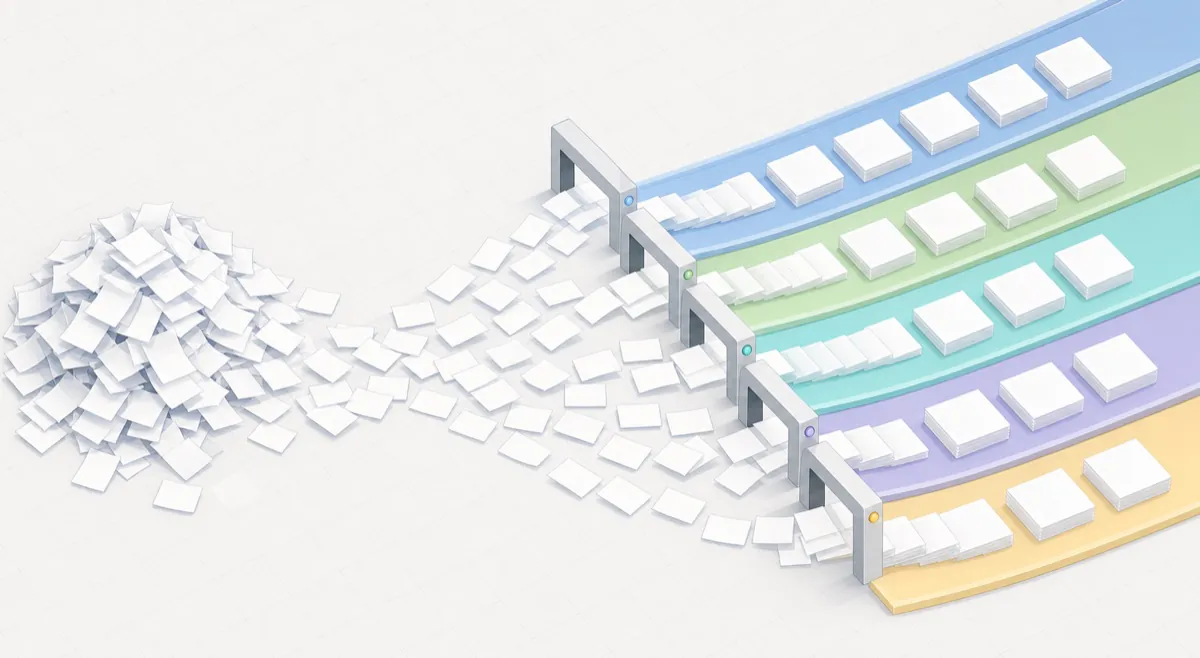
Downloads is a chute, not a home
Your Downloads folder isn’t part of this system. It’s the chute your browser, email, and messaging apps dump into, and treating it as storage is how people end up with 4,000 files and three copies of the same installer. Leave things there long enough and it becomes a second, worse filing system you never chose.
Empty it once a week. Most items go straight to the bin because you only needed them once. The rest get dragged into one of the five folders. Ten minutes on a Friday keeps Downloads from turning into the place files go to disappear.
Names that sort themselves
Good file names do quietly what folders do loudly. For anything with a date, start the name with the date in YYYY-MM-DD form, so 2026-04-15-acme-invoice sorts itself chronologically no matter what folder it lands in. For everything else, a plain client-project-thing pattern works: acme-website-contract reads the same in six months as it does today.
The one habit worth breaking is the version-name spiral. A file called proposal_final_v2_REAL_use-this-one tells you nothing except that you lost track. If you need versions, put the date in the name and let the newest date win.
Let Spotlight do the finding
With five folders and readable names, you stop navigating to files and start searching for them. Press Command-Space, type two words you remember, and the file surfaces regardless of which folder it’s in. This is the payoff for keeping the structure shallow: you were never going to remember a four-level path, but you will remember that the file was about Acme and had “invoice” in the name.
Spotlight also reads inside your files, not just their names, so a PDF you named carelessly is still findable by a phrase printed somewhere in it. That’s a useful safety net for the documents you never got around to renaming, and one more reason the folder tree doesn’t need to be clever.
This also means you don’t need to file perfectly. A file in roughly the right folder with a decent name is fully findable. Precision in the folder tree buys you almost nothing once search is doing the work.
Match the folders to your backup
The last advantage of five folders is that backup becomes a simple decision rather than a per-file one. Active and Reference hold the things you’d genuinely miss and can’t re-download, so those belong in the cloud, syncing continuously. A cloud tool like BlueHammer Drive can keep exactly those folders mirrored without pulling in the large media you’d rather store locally.
Media masters, the original photo and video files, are often too big to sync happily and don’t change once exported, so a local backup drive suits them better. Before you settle on which folders go where, it’s worth clearing out duplicate files so you’re not backing up three copies of the same thing, and then folding the whole setup into a proper Mac backup strategy. The folders make that mapping obvious instead of a file-by-file judgment call.
Common questions
How many folders is too many?
You have too many the moment you hesitate about where something goes. If a file could reasonably live in three places, you'll never remember which one you chose. Five top-level folders keeps the decision fast, and Spotlight handles the finding so you don't need depth to stay organized.
Should I organize by file type or by project?
Organize by project or purpose, not by file type. Sorting everything into Documents, Images, and PDFs is what folders looked like in 2005, and it splits a single project across three places. Keep the files for one job together, whatever their format.
What should I do with my existing mess?
Don't spend a weekend sorting history. Make one folder called Archive/pre-2026, drag the entire current pile into it, and start clean with the five-folder system from today. Spotlight can still find anything in the archive, and you get an organized setup without the cleanup marathon.
Recommended next step
Make everyday Mac care easier with BlueHammer
Clean up storage, organize files, browse privately, and keep everyday protection in one place.
Organize files with Drive